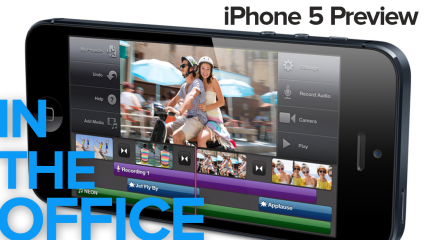
The iPhone 5s have landed in our offices. Before we go off for more
extensive examinations, here are a few preliminary reactions after
getting our hands on the thing.
The screen
Because the iPhone 5
is the same width as previous models, it feels familiar in some ways.
But then, when you reach up for that topmost corner to hit a Back button
or to pull down Notification Center, there’s a strange sense of wearing
shoes that are just slightly too big. By the same token, going back to
an iPhone 4S after holding a 5 is bizarre; the screen suddenly feels
squat.
Making the screen taller, but not wider, is actually kind of brilliant.
What do we do with our phones? Read emails, webpages, Twitter streams,
and so on. Now there’s more room for all of that, without stretching
things to wacky proportions.
Apps that have already been optimized for the larger display—such as
Apple’s own apps—certainly feel roomier for it. It’s exactly what you’d
expect, and it’s nice. Apps that have not yet been updated feel funny:
There are black bars at the top and the bottom. Even on one of the white
models, though, it’s easy to forget the bars are there: they blend in
with the dark screen.
What’s strange, though, is what happens to the iPhone’s status bar in
these apps. In most apps, the status bar is immediately above the app
itself, and then there was black space above it. But in one app we
tested, the status bar was at the very top of the screen, then there was
some black space, and then the contents of the app were displayed.
Turns out this is what happens when some parts of an app have
been updated for the iPhone 5, but not others. If an app hasn’t been
updated at all, the status bar sticks to the app and the black bars
extend above. The worst case scenario is that developers will just
stretch their apps up-and-down; there’s plenty of space to really retool
their interfaces, if they wanted to do so.
If you painstakingly organized your home screens, it’s time to
redecorate. Now that you can fit a fifth row of apps on your iPhone 5,
you’ll need to make new decisions about which apps go where. Or, we
suppose, you could leave everything exactly the same and have a gaping
empty row across the bottom of each screen.
The body
While the iPhone 5 is noticeably taller, the change is actually less
dramatic than you might expect. If you regularly clad your iPhone in a
battery case, for example, the caseless iPhone 5 may well be shorter than what you’re accustomed to.
An iPhone 4S in a battery case on the bottom, an unclad iPhone 5 on top.
The height difference is also a personal thing: If you’re accustomed to
sliding up a finger to trigger the Sleep/Wake button, that may now take
more effort than it did before; you may have to slide the phone down in
your hand to access that button, whereas before it was always within
reach. The Notification Center can be a real stretch.
As we’ve all heard, the iPhone 5 is as surprisingly light (3.95 ounces). There may be no such thing as toolight,
but some may find that it feels like a toy: it’s surprising, when you
turn the iPhone 5 on, to realize that a device this light is actually a
real phone, and not just a plastic replica that you give your kids to
play with. For years, there’s been a notable difference between the
weight of iPhones to their comparable iPod touches; the difference
between the iPhone 4S and the iPhone 5 feels that dramatic.
The case
As opposed to the iPhone 4 and 4S, which had a kind of “ice-cream
sandwich” construction, with two slabs of glass around a steel frame,
the iPhone 5 has edges that are ever so slightly beveled inward—chamfers,
if you want to use the technical term. It gives the phone a slightly
different feel in the hand, one that doesn’t press quite as sharply into
the palm as the previous phones.
In the past, iPhone color choices have been pretty limited: The iPhone
3G either had a black back or a white back, but that was it. The iPhone 4
came in black and (eventually) white, front and back, but the shiny
metal band around the device was the same regardless of color choice.
Photo credit: Robert Cardin
With the iPhone 5, the two phones really are different. The white model
most closely resembles the iPhone 4/4S, with a white front and back and
the silver metal band. But the black model is completely different. It’s
like the Spinal Tap model iPhone 5: How much blacker could it be? None
more black. The front and back have black glass, yes, but the metal band
and metal strip on the back are both “slate”—a metallic matte black.
The switches are black. Even the box is black, with “iPhone 5” printed
in shiny black lettering. If the white-and-silver iPhone 5 is Gandalf’s
iPhone, the black-and-slate model is Darth Vader’s.
And it’s gorgeous. Not everyone will want to embrace the Dark Side, but
the black metal on the black glass really ties the design of the phone
together in a way that the iPhone 4 didn’t.
That connector
The first thing some of us did when our new iPhones arrived was try to
plug it into our Macs using an existing dock connector cable. It only
took a second for us to realize, “Hey, dummy, that won’t work!” and dig
out the Lightning adapter in the box instead. We’re not the only ones who will do that, we bet.
Lightning connector
You might also pause to see if you have the Lightning plug oriented the
right way, just as we did with the old connector. Which, of course, you
don’t need to do: it works either way. (Some of us plugged and unplugged
the connector a couple of times, just for the novelty of it.) We never
paid much attention to where we put our iPhone cables: We always had a
couple stashed here and there around the house. You’ll likely have just
one Lightning cable for the time being; watch it closely.
The shocking thing about the Lightning cable is just how small it is. We
know: Apple said that it was a lot smaller. But it’s actually kind of
hard to pick up; it’s not much wider than the cable to which it’s
connected. To insert it in the iPhone, you need to hold the connector
squarely between your thumb and index finger. So even though there’s no
fiddling around with the connector’s orientation, you’ll have to retrain
your muscle memory.
Other observations
The speakers seem noticeably better—or at least, louder—than they were
on the 4S and 4. Part of that may be the changes in phone’s volume and
shape, which could provide more open air in the case. They’re still no
match for a good pair of headphones, but you can probably get away with
watching a YouTube video without everybody around you saying, “What?
What did he say?”
The Home button is distinctly stiffer than in iPhones past. It has a
sturdier feel and seems to require a firmer touch than Home buttons of
yore.
The improved front-facing camera—now in HD quality—is quite welcome, particularly for FaceTime calls.
Overall, while it feels like a very significant and substantial upgrade,
it also still feels like the same old iPhone. For many of us, that’s a
good thing.
When it comes to creating a
quality motherboard very few manufacturers can match ASUS in regards to
build quality, bios stability and overclocking capabilities. Today we
are looking at their latest Asus P8Z68-V Pro Gen 3 Motherboard, based
around the Z68 platform with full support for Quad SLI and Quad
Crossfire graphics.
This motherboard features UASP mode, which stands for USB Attached
SCSI Protocol. Asus say “With USB 3.0 Boost technology, a USB device’s
transmission speed is significantly increased up to 170%, adding to an
already impressive fast USB 3.0 transfer speed. ASUS software
automatically accelerates data speeds for compatible USB 3.0 peripherals
without the need for any user interaction.”
The board also has Dual Intelligent Processors with DIGI+ VRM
support. As with many of the higher end ASUS motherboards it has 12
phase power for the processor and 4 phase power for iGPU. Today we plan
on testing the board in an overclocked state, after all many people
buying this board will be doing the very same thing.
How does the P8Z68-V Pro Gen 3 Motherboard handle in an automated
overclocked state? If you aren’t a bios expert is there an ‘easy one
switch’ setting to improve performance significantly?
Overview:
Dual Intelligent Processors 2 with DIGI+ VRM Digital Power Design
UEFI BIOS (EZ Mode) – Flexible & Easy BIOS Interface
LucidLogix Virtu (Universal Switchable Graphics) – Auto Switching between Integrated Graphics and NVIDIA/AMD Cards
Intel® Smart Response Technology – SSD Speed with HDD Capacity
BT GO! (Bluetooth) – Diverse BT Enjoyment, New Technology Lifestyle
GPU Boost – Push the Limits with iGPU Level Up!
Quad USB 3.0/SATA 6Gb/s Support – Double Access, Double Convenience
The new iPad 3 is here: with Apple promising this to be another revolutionary device, we're wondering if the brand can really keep exciting users with its new devices. Can a sharper screen and improved innards entice enough people to make the jump?
Confusingly, Apple's latest model has no number in its name this time around strictly speaking (although most are still referring to it as the iPad 3 to avoid an Inception-like meltdown) – a sure sign that it's here to stay, like the iPod and MacBook Pro.
The main upgrades over the iPad 2 come in the form of a much higher resolution screen (Apple's calling it a Retina Display, although it lacks the pixel density of the iPhone 4S) and the slight spec boost to an A5X CPU.
We've also got a new level of connectivity to bring faster on-the-go speeds than ever before, plus an improved camera that's been increased to 5MP.
Is it enough to warrant an upgrade? Will it bring the same wow-factor Apple is so well-known for? TechRadar's had a good ol' play with the new iPad 3, so let's dive in and find out:
Design
You know the iPad 2? That's what this looks like. We mean, it's identical but for an extra 0.6mm thickness (up to 9.4mm) and around 50g of weight (650g for Wi-Fi only, 662g for the 4G model). Last year's cases will mostly still fit, though those with magnets to lock the screen may not work.
If you don't know what the iPad 2 looks like (and, really, where have you been?) it's a 9.7in glass screen with chic aluminium back. It's well-built with an exceptionally classy feel to it.
The new iPad 3's extra heft and thickness might put some people off – but it's only in side by side comparisons that the difference is noticeable. If you walked into an Apple store and picked it up, you wouldn't think it was a heavy tablet at all – although it is nearly 100g heavier than the Samsung Galaxy Note 10.1.
As before, the new iPad 3 has a home button on the front so you can easily wake the screen. There's the rocker switch on the right edge to either mute the sound or lock the orientation – you choose, which is something users haven't been offered much from Apple in the past.
The Apple 30-pin connector remains the only physical socket on the iPad, besides the 3.5mm headphone jack. This means you need adaptors to connect a USB stick or camera's SD memory card, but then again we never really expected the Cupertino lot to make a huge jump to new connectivity options here.
Adaptors will work fine to move images or documents onto the iPad, but getting them off is a whole other matter if you don't have Wi-Fi. It's not impossible but is annoyingly difficult, and remains a bugbear for many iPad users – especially when Android offerings are so much more adept at such things.
Acer Aspire 8920 Review, by Carla ThorntonOctober 23, 2008
The $2599 Acer Aspire 8920 is a whole lotta laptop, crammed with so many features that we kept checking for a kitchen sink. It has a humongous screen, a Blu-ray drive, six speakers, a giant hard drive, a top-flight processor, and a gadget-laden keyboard. You won't skip the light fandango while carrying this 9-pound monstrosity, but you will get awesome performance (and anemic battery life). In other words, it's a powerful desktop replacement laptop that will take up most of your desktop.
The 18.4-inch screen, with a fully HD-capable 1920-by-1080-pixel resolution, makes the 8920 good for creative types or for a family room. It's a dream screen for watching movies, editing graphics, or engaging in other highly detailed work. The screen is so surreally large that complaining about anything hardly seems fair, but we do wish that it was a little brighter.
Acer offers two fixed configurations of the 8920; we reviewed the beefier AS8920-6671, which includes a 2.6-GHz T9500 Core 2 Duo processor and 4GB of main memory. Given its power, we weren't too surprised when it smoked our performance tests with a score of 97, just one point shy of the Montevina-equipped HP Pavilion dv7t. The 512MB nVidia GeForce 9650M GS graphics card turned in solid gaming scores of 127 frames per second in Doom 3 and 162 fps in Far Cry with antialiasing turned off. One drawback of the 8920: The 2.6-hour battery life will give you more than enough time to move this beast to another room and find a new outlet, but not much else.
Acer switched to a richer-looking, dark-metallic-blue lid and a shiny piano-black keyboard for the 8920, ditching the light case colors of its older Gemstone notebooks. The keyboard has a nice layout, including a dedicated number pad and tons of shortcuts for you to get all sorts of things done with the press of a button. The most conspicuous is Acer's giant 'E' shortcut key in the upper right of the keyboard, shaped and colored like a big fake jewel, which launches Empowering Technology on-screen shortcuts, a drop-down menu for setting sound effects, power management controls, security (file encryption) settings, and Acer eRecovery Management for making full or partial backups to the D: drive. Four long, skinny silver buttons lined up vertically underneath the 'E' handle Wi-Fi and Bluetooth combination power/indicator controls, always welcome conveniences.
To the left of the keyboard is the CineDash Media Console, a large touch-sensitive control pad that resembles a seating chart for a concert hall: The round "stage" area is Enter, the semicircular parts that look like rows are the volume swipe, and so on. It's easy to use once you get your bearings, though it does take some getting accustomed to. (Is that a concession stand or the Pause button?) Too bad the laptop's speakers don't sound better; the bass was so timid that we didn't even know a subwoofer existed until we looked underneath. Still, the speakers are loud and pleasing enough for you to listen to music or watch a movie without headphones.
The 8920 is nearly 2 inches thick, with lots of case space for connections--and this laptop mostly delivers on ports. The stylish dropped hinges leave a clean, port-free rear. A six-in-one card reader and an infrared receiver that works with the included entertainment remote control sit conveniently on the front. The machine has four USB ports--two on each side--and on the left side are an HDMI port and extra audio line-in. Somewhat surprising, though, is this laptop's complete lack of FireWire or eSATA ports.
The 320GB hard drive should be storage nirvana for video fiends. Acer rounds out the package with a set of basic productivity applications, including Microsoft Works 8.5.
If you need a basic, workhorse desktop replacement, you have cheaper, more sensible choices than the Acer Aspire 8920. But if flashy looks and big-screen entertainment are your goals, the 8920 deserves a spot on your short list.
In a lavish suite at the Trump Hotel in Las Vegas, Asus set up a number of existing an upcoming products for eager members of the technology press to ogle and get some hands-on time. In the suite, we had a chance to checkout a handful of upcoming X79 motherboards, nettops, netbooks, notebooks, and even a few tablets and a smartphone.
One of the standout products had to be the new Transformer Prime TF700T, which builds upon the original design we showed you here, but adds an absolutely awesome WUXGA 1920x1200 resolution screen, a higher-resolution front facing camera, and reportedly more reliable Wi-Fi performance.
A video of the Transformer Prime TF700T is posted above. As you can see, the device offers silky smooth performance navigating through the various menus, thanks not only to NVIDIA’s Tegra 3 SoC, but enhancements coming with Android 4.03, a.k.a Ice Cream Sandwich, which was running on the device. Although better, quickly scrolling the web browser still resulted in some blank blocks and redraws.
What the video doesn’t clearly convey is how sharp and clear the 10.1” WUXGA screen really is. The Asus TF700T easily has the best screen we have ever come across on a tablet. The new front facing camera in the TF700T is upgraded from the original’s 1.2MP to a full 2MP, but we didn’t evaluate it on-site and can’t comment on its performance just yet.
The upgraded Asus Transformer Prime TF700T will be available sometime in Q1 and carries a $599 price tag for a 32GB model, $100 more than the original.
Also on display in Asus’ suite was the latest iteration of the PadFone device the company has been talking about for a while. This version of the phone was running Android Ice Cream Sandwich, however. If you’re unfamiliar with the PadFone, it’s essentially a smartphone that can be docked into the back of a larger tablet screen.
Asus’ new MeMO 370T 7” tablet was also on display, although solid information on this little puppy isn’t clear just yet. Asus sent out a press release the other day regarding the device, but we were told the specs would be changing before launch (Asus now plans to use NVIDIA’s Tegra in the device), with the goal of bringing the price down to around Kindle Fire levels.
A number of new netbooks were also available in the suite. What you see here are the upcoming Eee PC 1225C, 1025C, and X101CH. All three of these machines were based on Intel’s newest Atom processor platform, codenamed Cedar Trail, which is manufactured using Intel’s advanced 32nm processor and features a more powerful integrated GPU. The new platform also offers better overall performance and lower power consumption, so battery life should be much improved over current models. The machines will also offer interchangeable, colored lids, which are pictured here.


 Postingan


 ADS SPACE (150 X 125)